Articles by "Windows Tips"
Showing posts with label Windows Tips. Show all posts
Cpdemy is a knowledge driven hive dedicated to producing great how-to, tips and tricks, awesome tutorials on Photoshop, Wordpress, Blogger, SEO

In this awesome tutorial, I will show you step by step how to delete the Windows.old folder from Windows 10 without using any extra software, but using a Windows utility called "Disk Cleanup".

This utility is included in every Microsoft Windows version. Using Disk Cleanup is probably the best and safest way to completely delete this folder.

What is the Windows.old Folder? Have you ever tried to Install Windows OS on a system without formatting the Drive? If yes, you would have noticed the Windows.old folder on the C drive of your computer. The Windows.old folder contains the previous version(s) of Windows installation(s).

This folder can take up a lot of disk space and it is safe to delete it, but if you think that someday you might want to downgrade from Windows 10 back to the previous version, then don't delete that folder, because deleting the Windows.old folder can't be undone.

You can't just delete this folder like you do with normal folders and files, but you will need to use a built-in Windows tool called "Disk Cleanup" to properly and safely delete this folder and this tutorial will show you step by step how to use this tool.

Where is the Windows old folder in Windows 10?

You can find the Windows.old folder at This PC > Local Disk (C:) > Windows.old.

1. Open File Explorer (Windows Explorer - This PC[Windows 8 & 10]). (You can use the shortcut Window + E)

2. Open "Local Disk (C:)".

3. You will find the folder located underneath the Windows folder.


Can I delete the Windows old folder after installing Windows 10? Yes, you can delete the Windows.old folder after installing Windows 10. However, it is very important to bear in mind that after deleting this folder, you will no longer be able to roll back to the previous version of Windows.


Is it safe to remove the Windows old folder?
Yes, In fact it's 100% safe to delete the Windows.old folder. However, you should keep in mind that after deleting this folder, you will no longer be able to roll back to the previous version of Windows.


Can't Delete the Windows.old Folder from Windows 10?
If you can't delete the Windows.old folder from Windows 10 using the disk cleanup tool, then don't worry, because Windows 10 will automatically remove the Windows.old folder one month after you upgraded.


How to Properly Delete the Windows.old Folder from Windows 10
Note: Deleting the Windows.old folder can't be undone.
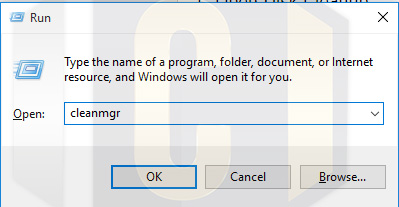
1. Open Disk Cleanup.
Type Window + R to open the Run dialog box
type cleanmgr 


2. If the "Disk Cleanup: Drive Selection" window appears, then select the Windows drive (usually it's the (c:) drive) and click on "OK".


Windows will now calculate how much disk space you will be able to free on your drive.

3. Click the "Clean up system files" button. 


5. Check the box next to "Previous Windows installation(s)". 

Note: If you want you can delete the other files as well. Just check everything you wish to delete.


6. Click "OK".

See also: Windows 10 Tip: Quick Way To Take A Screenshot Using Keyboard Shortcuts

7. Click "Delete Files".

Disk Cleanup will now safely delete the Windows.old folder from Windows 10.


Conclusion:
At the end of this tutorial, you should now be able to clean windows.old folder, this step can also be used to clean up other system files to free disk space.

Worth sharing huh? Sharing is loving, please share


If you liked this article, then please subscribe to our YouTube Channel for video tutorials. You can also find us on TwitterInstagram and Facebook.

Reference(s):
· CNET: How to delete the Windows.old folder from Windows 10

· HowToGeek: What is the Windows.old Folder and How Do You Delete It?

Cpdemy is a knowledge driven hive dedicated to producing great how-to, tips and tricks, awesome tutorials on Photoshop, Wordpress, Blogger, SEO

As we all know, in previous versions of Windows, you can take a screenshot by using the PrtScn key and then pasting it in the software of your choice which can be sometimes very tedious especially if you have a lot of pages to Screenshot, but with Windows 10, everything is a lot easier.

Of course this option still works in Windows 10 which will take a shot of everything on the screen, copy it to the Clipboard, and then allow you to paste it into a program such as Microsoft Word or Paint or any other Graphics Program of your choice. However, if you have a multiple monitor setup it can be annoying when you just need a specific window or section of your screen.

Windows 10 Screenshot Keyboard Shortcuts
If you don't want to install a third-party software, here’s a look at some different keyboard shortcuts for taking shots in Windows 10 to achieve the results you need. 


Windows Key + PrtScn: Windows 10 will take a screenshot and save it as a PNG file in the default Pictures folder in File Explorer.
Alt + PrtScn: This is a great option if you just want to take a shot of an individual window on your screen.


Note: Alt + PrtScn will only copy your shot to the Clipboard so you can paste it into a document or other image editor like Microsoft Paint. It doesn’t create a backup copy in the Pictures folder.
Cpdemy is a knowledge driven hive dedicated to producing great how-to, tips and tricks, awesome tutorials on Photoshop, Wordpress, Blogger, SEO


In this awesome tutorial, I will show you step by step how to delete the Windows.old folder from Windows 10 without using any extra software, but using a Windows utility called "Disk Cleanup".

This utility is included in every Microsoft Windows version. Using Disk Cleanup is probably the best and safest way to completely delete this folder.

What is the Windows.old Folder?

Have you ever tried to Install Windows OS on a system without formatting the Drive? If yes, you would have noticed the Windows.old folder on the C drive of your computer. The Windows.old folder contains the previous version(s) of Windows installation(s).


This folder can take up a lot of disk space and it is safe to delete it, but if you think that someday you might want to downgrade from Windows 10 back to the previous version, then don't delete that folder, because deleting the Windows.old folder can't be undone.


You can't just delete this folder like you do with normal folders and files, but you will need to use a built-in Windows tool called "Disk Cleanup" to properly and safely delete this folder and this tutorial will show you step by step how to use this tool.


Where is the Windows old folder in Windows 10?
You can find the Windows.old folder at This PC > Local Disk (C:) > Windows.old.


1. Open File Explorer (Windows Explorer - This PC[Windows 8 & 10]). (You can use the shortcut Window + E) 
2. Open "Local Disk (C:)".
3. You will find the folder located underneath the Windows folder.


Can I delete the Windows old folder after installing Windows 10?
Yes, you can delete the Windows.old folder after installing Windows 10. However, it is very important to bear in mind that after deleting this folder, you will no longer be able to roll back to the previous version of Windows.


Is it safe to remove the Windows old folder?
Yes, In fact it's 100% safe to delete the Windows.old folder. However, you should keep in mind that after deleting this folder, you will no longer be able to roll back to the previous version of Windows.


Can't Delete the Windows.old Folder from Windows 10?
If you can't delete the Windows.old folder from Windows 10 using the disk cleanup tool, then don't worry, because Windows 10 will automatically remove the Windows.old folder one month after you upgraded.


How to Properly Delete the Windows.old Folder from Windows 10
Note: Deleting the Windows.old folder can't be undone.

1. Open Disk Cleanup.

Type Window + R to open the Run dialog box
type cleanmgr


2. If the "Disk Cleanup: Drive Selection" window appears, then select the Windows drive (usually it's the (c:) drive) and click on "OK".

Windows will now calculate how much disk space you will be able to free on your drive.

3. Click the "Clean up system files" button.

4. If the "Disk Cleanup: Drive Selection" window appears, then select the Windows drive (usually it's the (c:) drive) and click on "OK".

Windows will again calculate how much disk space you will be able to free on your drive.

5. Check the box next to "Previous Windows installation(s)".

Note: If you want you can delete the other files as well. Just check everything you wish to delete.

6. Click "OK".

7. Click "Delete Files".

Disk Cleanup will now safely delete the Windows.old folder from Windows 10.


Conclusion:
At the end of this tutorial, you should now be able to clean windows.old folder, this step can also be used to clean up other system files to free disk space. 

Let me know if it worked for you. Leave a comment


Reference(s):


Cpdemy is a knowledge driven hive dedicated to producing great how-to, tips and tricks, awesome tutorials on Photoshop, Wordpress, Blogger, SEO


Airplane Mode in Windows 8.1 is a feature that lets you use devices on an airplane or other locations where a wireless connection isn’t permitted. Or maybe if you simply want to temporally disconnect your network, airplane mode is a good choice.


How to turn it on and off in Windows 8.1.
To turn Airplane Mode on, start by bringing up the Charms bar will appear and select Settings.


Now click or tap the name of the network you’re connected to.


You can now toggle Airplane Mode on or off.


You can also do this by clicking the wireless network symbol in the Windows notification area. You’ll get the same slider you see above. Or by pressing F12 for most Hp PCs

When it is turned off, it should look like this